



































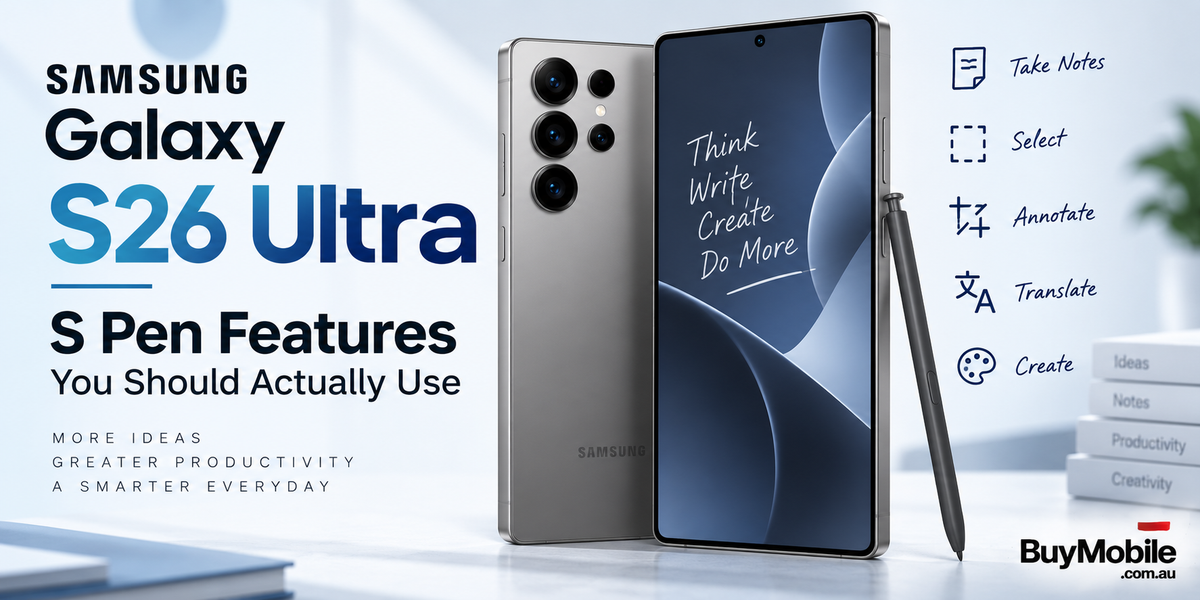
The Samsung Galaxy S26 Ultra is packed with powerful hardware and Galaxy AI features, but one feature continues to make the Ultra different from most flagship smartphones: the built-in S Pen. It can easily be overlooked if you normally navigate your phone with your fingers, yet the stylus becomes surprisingly useful once you know which features are worth using.The Galaxy S26 Ultra's included S Pen doesn't use Bluetooth and doesn't require pairing or charging. That also means Bluetooth-based Air Actions and remote camera controls aren't available with the standard S26 Ultra S Pen. Instead, Samsung has focused on writing, precision selection, productivity and creative tools. Here are the S Pen features that can actually make a difference in everyday use.
Screen Off Memo Is Perfect for Quick Ideas
Screen Off Memo is one of those features that sounds basic until you start using it regularly.When an idea, phone number or reminder suddenly comes to mind, you don't need to unlock the Galaxy S26 Ultra, find Samsung Notes and create a new document. Samsung lets you remove the S Pen and start writing while the screen is off. It's particularly useful during meetings, phone calls or when you're moving around and need to capture something quickly.For people who traditionally carry a small notebook, this feature can make the Galaxy S26 Ultra feel like a digital replacement that's always in your pocket.
Use S Pen to Text Instead of Opening the Keyboard
Typing isn't always the most convenient way to enter information.S Pen to Text lets you handwrite directly inside compatible text fields. Your handwriting is then converted into regular digital text. Samsung says the feature works in areas such as search boxes and address bars. It can be particularly useful when entering short search queries, writing quick responses or filling out information while holding the phone in one hand.You can enable it through Settings > Advanced features > S Pen > S Pen to text.For users who naturally prefer handwriting, this is one of the S Pen features worth enabling immediately.
AI Select Makes On-Screen Content More Useful
AI Select is where the S Pen begins to feel considerably more powerful than an ordinary stylus.Open Air Command and choose AI Select, then use the S Pen to select something on the screen. Samsung says AI Select can work with selected content for tasks such as drawing on it, creating GIFs and generating images.The advantage is precision.Using your finger to select a very specific portion of an image or interface can sometimes feel clumsy. The fine S Pen tip makes selecting exactly what you want much easier.Students could use it when collecting information for research, professionals could capture a specific part of a document, and social media users can quickly work with interesting content they discover.
Screen Write Is Great for Explaining Things
Have you ever taken a screenshot just so you could circle something before sending it to someone?Screen Write essentially builds that workflow into the S Pen experience.The feature lets you capture and write directly over what's displayed on the screen. You could circle a meeting location on a map, highlight a price on a shopping page, mark corrections in a document or add instructions to a screenshot before sharing it.It's considerably faster than taking a screenshot, opening an editing application and then searching for annotation tools.For work and study, Screen Write can become one of the most practical S Pen functions.
Translate Text Without Constantly Switching Apps
Translation is another useful Air Command feature.Samsung's S Pen Translate tool lets you translate on-screen text while selecting the preferred language from the interface.Imagine reading a webpage containing unfamiliar words or checking information while travelling. Instead of repeatedly copying text, opening a translation application, pasting it and returning to the original page, the S Pen gives you a more direct workflow.It may not be something you use every hour, but when you need it, the convenience becomes obvious.
Air View Can Save You Extra Taps
Don't confuse Air View with Air Actions.The Galaxy S26 Ultra's standard S Pen doesn't support Bluetooth Air Actions, but Air View remains available. Samsung says you can hover the S Pen over compatible content to preview information without immediately opening it.For example, hovering over certain images can provide a preview.Samsung also lets you configure Air View so you can use previews and a pointer together, only the pointer or only previews.It makes navigating the large Galaxy S26 Ultra display feel more like using a precise computer pointer.
Write Directly on Your Calendar
This feature deserves more attention from anyone who organises their day visually.Air Command includes Write on Calendar, allowing you to make handwritten additions directly within Samsung Calendar. Instead of treating your calendar entirely like a database of typed appointments, you can interact with it more like a traditional planner.You could add a short reminder, highlight an important day or quickly annotate your schedule.For students managing assignments or professionals dealing with meetings and deadlines, this can make planning feel much more natural.
Use the S Pen for Precise Photo Editing
Photo editing is one of the strongest arguments for having a stylus built directly into a smartphone.Your finger is perfectly adequate for adjusting brightness or applying a filter. It becomes less convenient when you're trying to make a precise selection, draw around a small object or control an editing tool accurately.Samsung specifically promotes precise photo editing as one of the S26 Ultra's S Pen use cases. Combine that precision with modern Galaxy editing and AI tools and the S Pen becomes particularly useful for photographers, creators and social media users.Even basic edits can feel easier when your finger isn't covering the exact part of the image you're trying to manipulate.
Creative Studio Makes the S Pen More Fun
Not every S Pen feature needs to be about productivity.Samsung's Air Command menu on the S26 Ultra includes Creative Studio. It can transform sketches into artwork, generate images from text descriptions and turn Gallery photographs into different creative interpretations such as cartoonsThere's also PENUP for drawing and artwork.The S Pen supports 4,096 pressure levels, and Samsung describes its 0.7mm-class fine tip as designed for accurate, natural writing and drawing. You don't need to be a professional artist to benefit. Doodling, annotating photographs or experimenting with generated artwork can be enough to make the stylus enjoyable.
Magnify Small Content Without Constantly Zooming
Magnify is one of the quieter S Pen tools.Select it from Air Command and you can hover the pen over areas of the display to enlarge content.That can help when reading small website text, examining fine details in photographs or looking at information inside interfaces that don't offer convenient zoom controls.It's a small convenience, but that's exactly what makes it useful.
Don't Expect Bluetooth Camera Controls
This is particularly important if you're upgrading from an older Galaxy Ultra.The built-in Galaxy S26 Ultra S Pen does not support Bluetooth Low Energy or Air Actions. As a result, you cannot use its included S Pen as a wireless camera shutter or perform the old Bluetooth gesture controls.Samsung's documentation confirms that the S26 Ultra S Pen requires neither Bluetooth pairing nor charging. Knowing this prevents users from spending time searching through settings for features that aren't available with the included pen.
Is the Galaxy S26 Ultra S Pen Actually Useful?
The S Pen becomes valuable when you stop thinking of it as simply a tool for handwriting.Screen Off Memo makes capturing ideas almost instant. S Pen to Text turns handwriting into digital input. AI Select and Screen Write make working with on-screen information easier. Translate and Magnify provide practical shortcuts, while precise photo editing and Creative Studio give creators more control.You probably won't use every S Pen function every day and you don't need to.The best approach is to identify three or four features that match your routine. For many Galaxy S26 Ultra owners, Screen Off Memo, AI Select, Screen Write and S Pen to Text are excellent places to start.Once those features become part of your workflow, the S Pen stops feeling like an extra accessory hidden inside the phone and starts becoming one of the Galaxy S26 Ultra's most genuinely useful productivity tools.